Check the acquisition promise
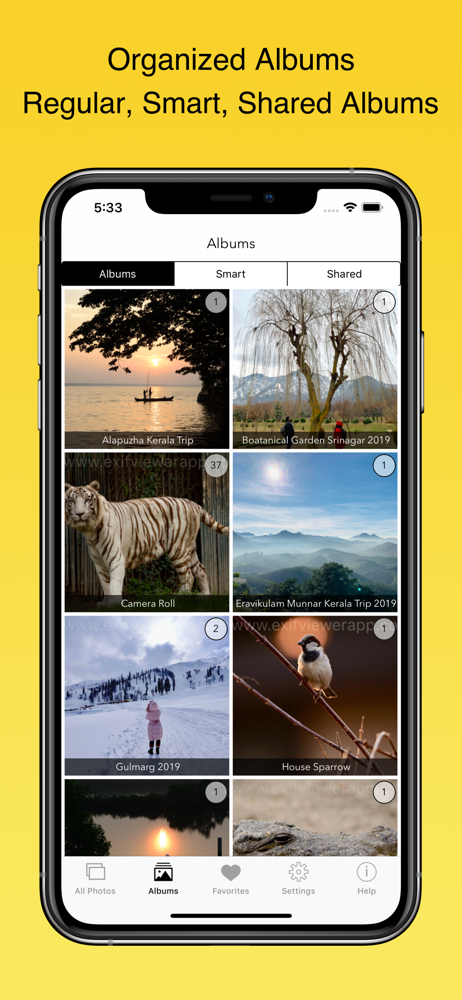
Read the store headline, screenshots and description. What problem is the app promising to solve?
Study the storefront ↗
Fluntro · iOS
Explore the ad evidence, study the storefront, and build your next acquisition hypothesis.
01 / Creative research
Read the store headline, screenshots and description. What problem is the app promising to solve?
Study the storefront ↗Explore apps with direct store-link matches. Compare their hooks and formats without assuming the same approach works here.
Browse observed advertisers ↗Store rankings and revenue estimates describe market context. They do not establish ad spend, conversions or ROAS.
Review the market context ↗02 / Storefront & product
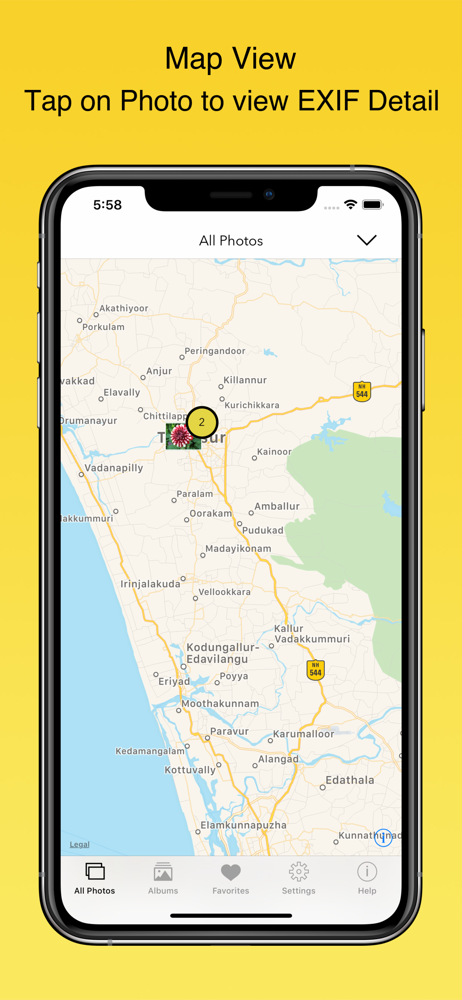
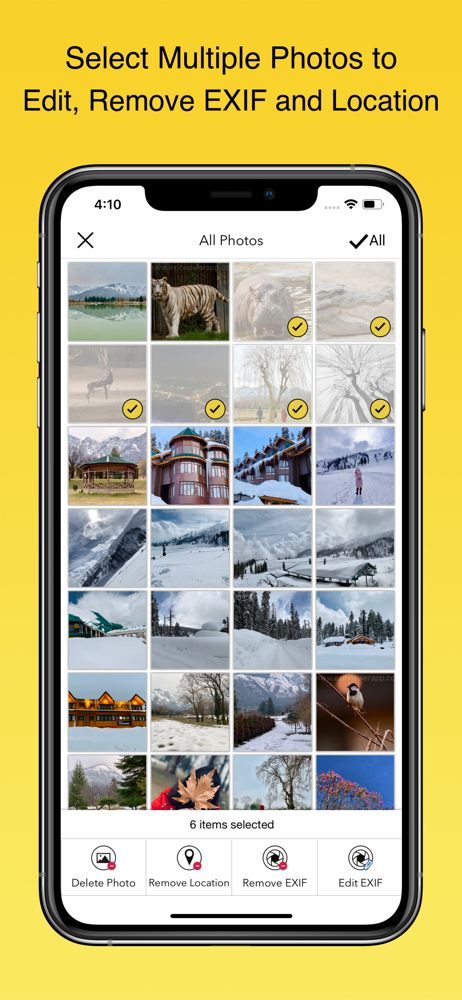
Study the product story and store experience behind the acquisition funnel.

03 / Market context
Keep revenue, downloads and store rankings separate from advertising performance.
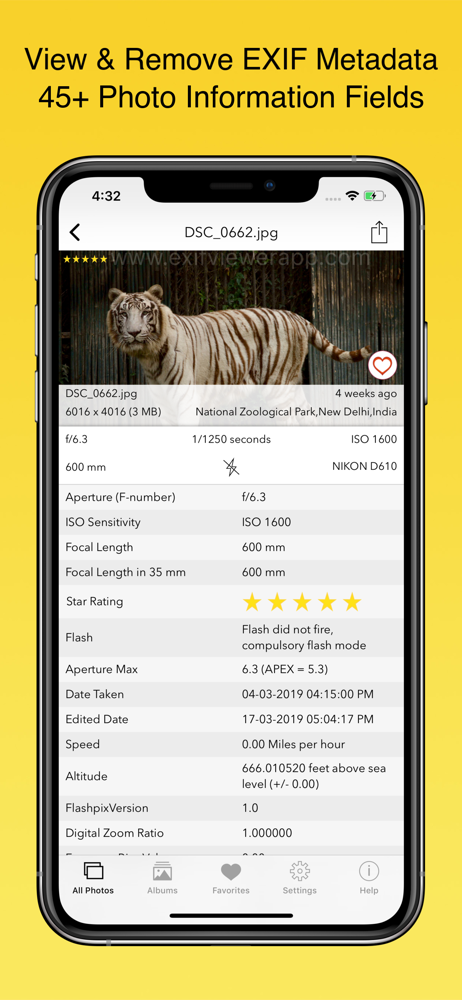
I needed to verify the shutter count on my DSLR. I know there is at least one web site that I could use that would look at an uploaded picture to find the information, but that shouldn’t be necessary. With all the EXIF viewers out there, I should have been able to use one to find the count directly. I had no luck finding one that worked until I came across this app. For a one-time cheap price, this app was able to give the count I needed and also a lot more EXIF information. In addition to including all EXIF data, the user interface is well done and easy to use. It’s very easy for me to highly recommend this app.
It’s well done and works well, if you get used to a couple of weird quirks. I edit photos and will have multiple versions of the same. If I click View Exif on an image, and then open the app from there, the image itself does not open, but the app does. If I repeat the exact steps a 2nd time, the app will open the original photo, when I was asking it to open a photo that is an edited version of the original. I then swipe to the one I want and proceed but you can see how this gets a little tedious. All in all, I still recommend because these are minor things that I feel have to do with the changes that iOS keeps making to the albums and camera roll and recent photos sorting. Multiple apps I own have problems pulling up Recent Photos in order saved now (separate issue but I feel this probably causes some issues for developers).
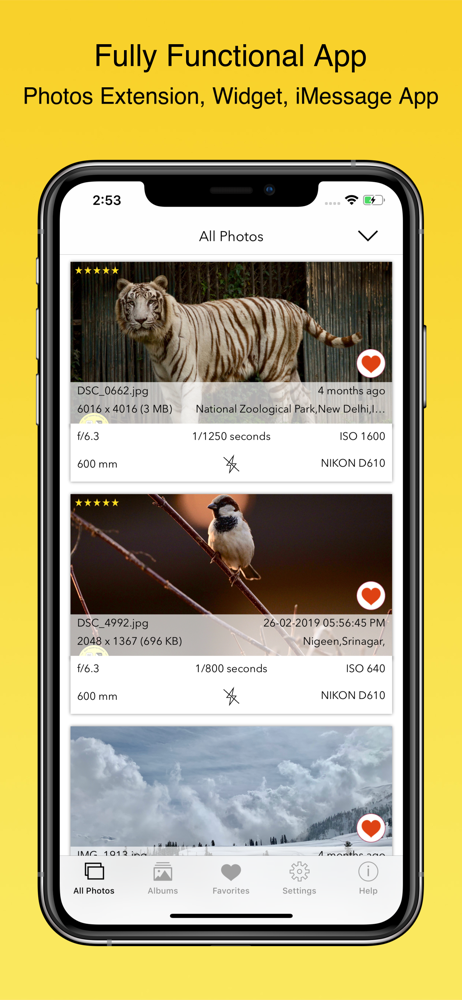
The action extension alone is worth the price. (Action extensions are the grey-scale icons you see after you tap the box-with-an-arrow-shooting-out-the-top/share/action icon while in Photos, Messages, or other apps.) I like the app for swiping through a group of photos and studying EXIF metadata, but what I really wanted was a way to see metadata that Photos doesn’t display, without leaving Photos. The extension does that. With the action extension, two taps (one on the share/action icon and one to choose View Exif) from within Photos and I can see exposure, file name, and so on, or two taps from within Mail or Messages and I can see on a map where that beautiful picture just sent to me was taken, assuming EXIF data is in the photo. And if I want to share a photo, another tap on the share/action icon, a tap to choose “Share with EXIF” or “Share without EXIF”, and the usual sharing options appear. Really sweet work flow. A tip if you’ve read this far - move the View Exif icon to be your second or third icon and manage and reorder the EXIF data tags to put the ones you use at the top.
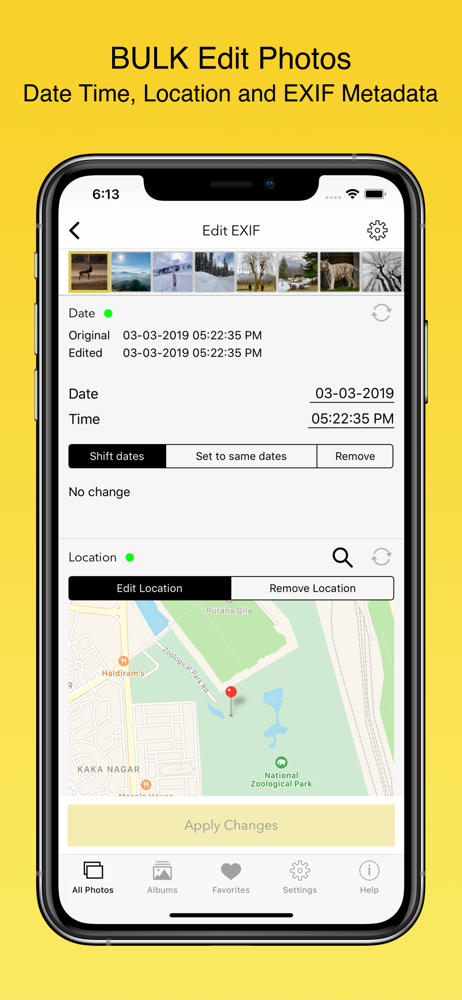
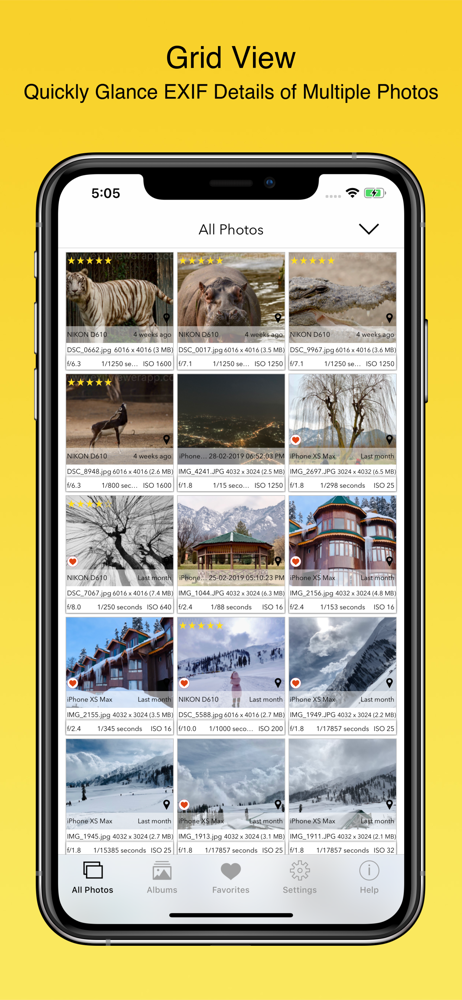
Featured by Apple on the US and Canada App Store. Enjoy a one-time purchase with lifetime access—no subscription required. EXIF Viewer by Fluntro is t...