
Check the acquisition promise
Read the store headline, screenshots and description. What problem is the app promising to solve?
Study the storefront ↗
WATCH TOWER BIBLE & TRACT SOCIETY · iOS
Explore the ad evidence, study the storefront, and build your next acquisition hypothesis.
01 / Creative research
Read the store headline, screenshots and description. What problem is the app promising to solve?
Study the storefront ↗Explore apps with direct store-link matches. Compare their hooks and formats without assuming the same approach works here.
Browse observed advertisers ↗Store rankings and revenue estimates describe market context. They do not establish ad spend, conversions or ROAS.
Review the market context ↗02 / Storefront & product
Study the product story and store experience behind the acquisition funnel.



03 / Market context
Keep revenue, downloads and store rankings separate from advertising performance.
I enjoy using this App on my IOS device when I’m sick. The sound is clear and understandable. Except, when bad weather hits. The WIFI goes all which way, only then do I loose a Signal. I also have it on my ROKU, which allows me to see the lyrics of the songs, videos and pictures. Plus, hopefully soon LIVE VIDEO, which will be Great, many elderly and disabled who are able to be made to feel a little part of things. This will be on the ROKU App - (only) True without a shadow of doubt, a banquet of provisions from Jehovah God. I did try to find a MUTE BUTTON in Settings, it’s not there. And when, one is sick with a cold, there’s coughing & blowing of one’s nose, For example ...having a MUTE BUTTON would save anyone from having to hear that in a large audience. I do HARDLY AGREE a MUTE BUTTON Needs to be the 1st thing on the Agenda in the next UPDATE. Otherwise, it brings much Joy to those who use it Regularly. So glad, I’m able to use it. Keeps me Spiritually focused. Thanks.
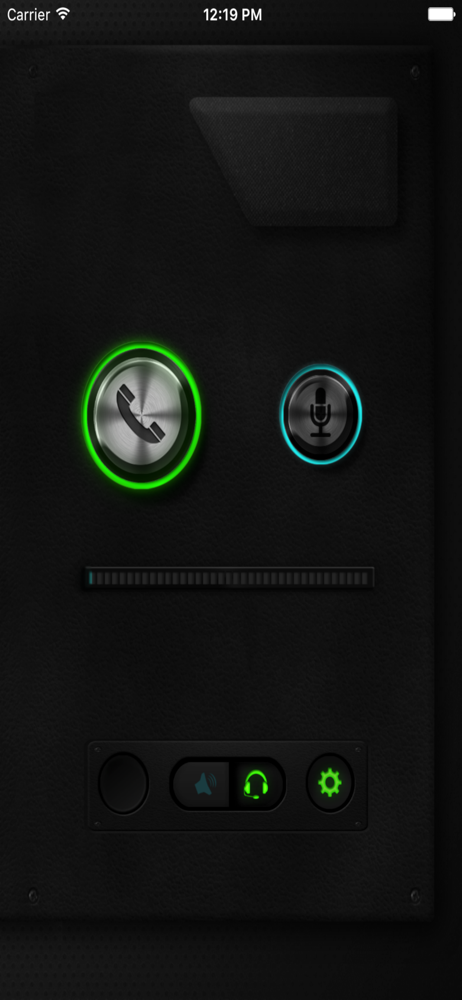
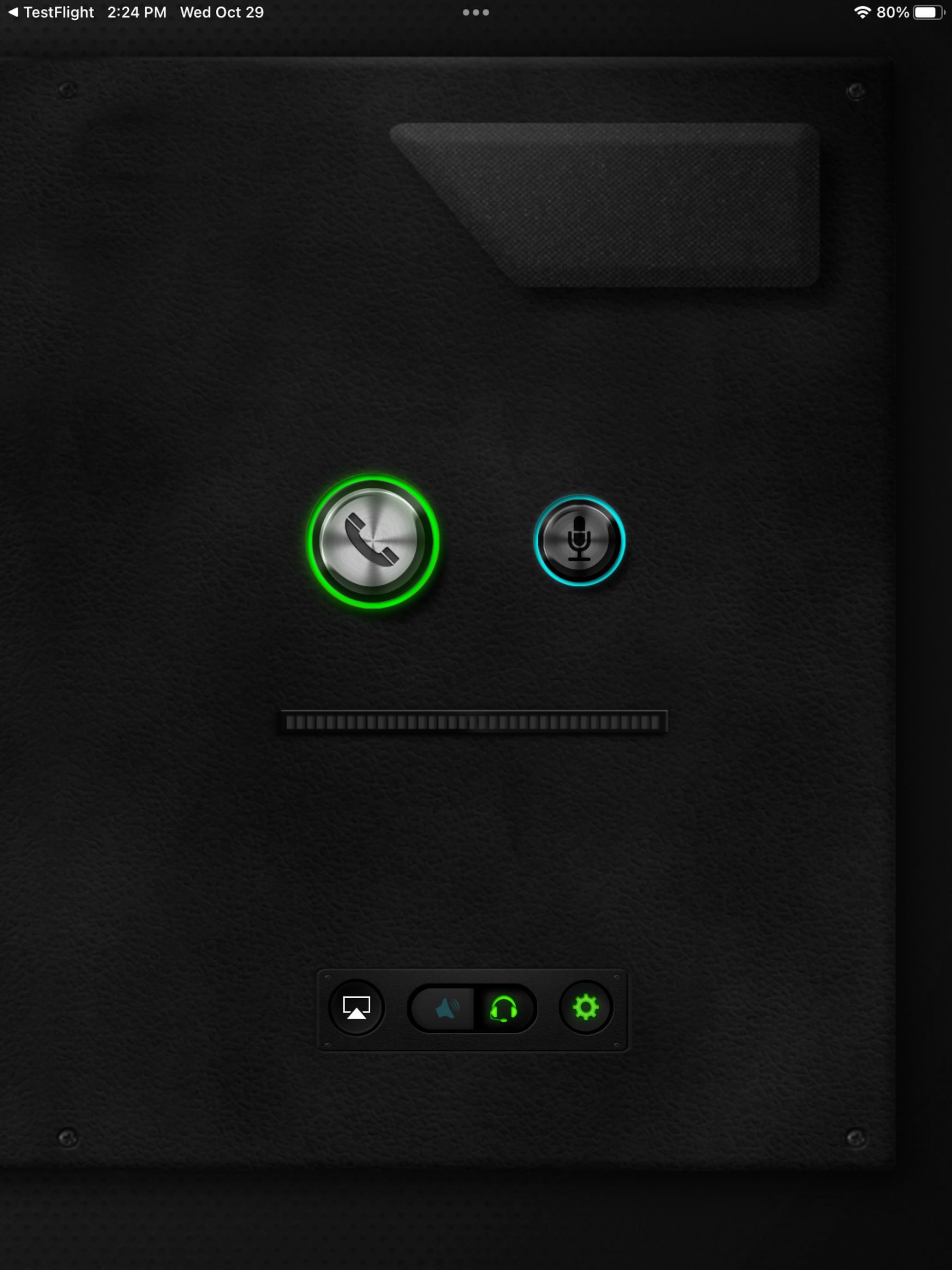
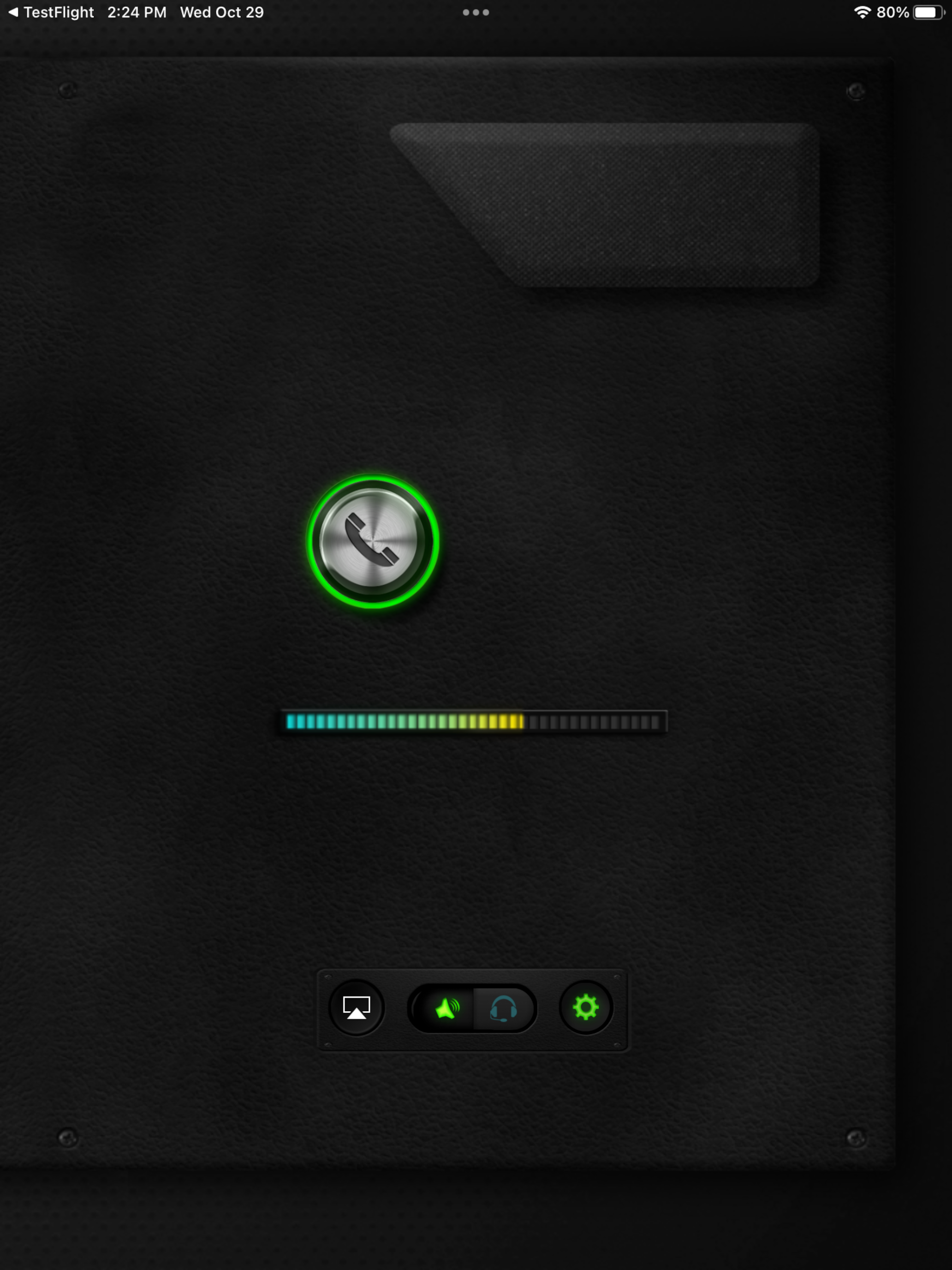
At first I was frustrated trying to figure out how to use this but to anyone who also has a little trouble at first, don’t give up and don’t be afraid to push lots of buttons. There are only 4 on my iPhone. The first 3 are sound related 1. The cast button (looks like a TV) - makes your sound come from alternate devices. Does not work well with Bluetooth in my experience. 2. Speaker/headphone gives the option to listen on speaker or on headphone or holding cell phone to your ear. 3. The settings button. This is where you make sure your telephone numbers and pin are correct and you add the number of listeners. KHconf formatted the numbers for me. All my settings are off, btw. 4. The “call” button. This was frustrating for me but I figured it out.. ready? You have to push the button twice. Push it once, it turns yellow. If you don’t push it again within about 2 seconds it goes dark. But if you push it the second time while it’s still yellow it goes green and voila!! You’re connected!! Thanks brothers keep up the good work
Been using this great app but I do not understand the square with up arrow (to share?) the volume icon and the headphone icon. In order for us to listen on a bluetooth speaker, we have to tap the volume button but I want to make sure our sounds will not transmit to kh speaker system. When I click on headphone, we lose the bluetooth speaker sound. Please help us to understand the icons. Many many thanks.
Client application for JW Conf Listeners. Uses data connection on device to listen to meeting.


