Check the acquisition promise
Read the store headline, screenshots and description. What problem is the app promising to solve?
Study the storefront ↗
Readdle Technologies Limited · iOS
Explore the ad evidence, study the storefront, and build your next acquisition hypothesis.
01 / Creative research
Read the store headline, screenshots and description. What problem is the app promising to solve?
Study the storefront ↗Explore apps with direct store-link matches. Compare their hooks and formats without assuming the same approach works here.
Browse observed advertisers ↗Store rankings and revenue estimates describe market context. They do not establish ad spend, conversions or ROAS.
Review the market context ↗02 / Storefront & product
Study the product story and store experience behind the acquisition funnel.


03 / Market context
Keep revenue, downloads and store rankings separate from advertising performance.
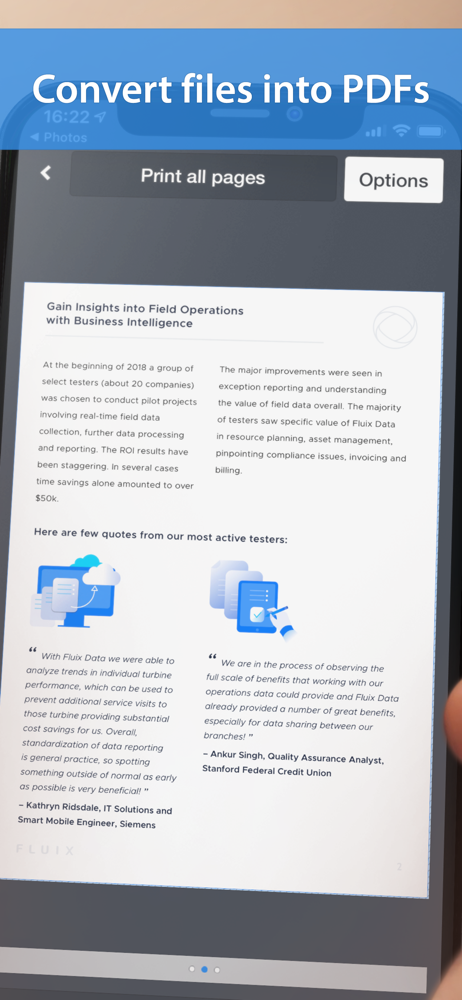
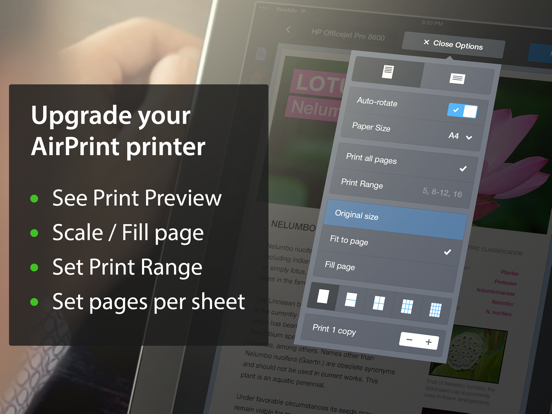
Allows me to print from all my IOS 14.7.1 version iPads iPhones in color or BW. I love the feature where you can also add in the PDF printer so you can turn any image/document/web page into a stored PDF document When I set the utility up it detects the Brother 9120, but tries to print to it using Postscript via the Bonjour Apple protocol ….that was Never going to fly with my old but very functional network-color laser printer. So you then just manually add in an IP printer and put in the network IP address of the brother 9120. the first test print fails and prints nothing. So I follow the instructions and click test print did not print. It then asks you to chose the page description language. My printer worked with the PCL option (the 9120 has a brother postscript CLONE but it’s less than great at printing TRUE postscript or PDF files that don’t come via a brother print driver or the brother print/scan iPad app.) Once that printed and I did the margin adjustments it worked a TREAT. I do wish there was a way to edit the NAME the IP printers rather than just seeing the IP address as the printer name. But that’s a small issue as I only have a couple of home printers.
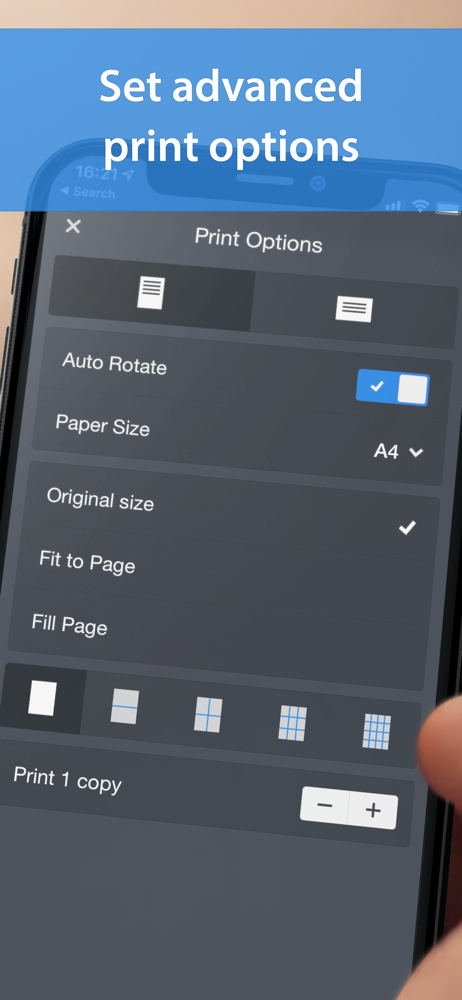
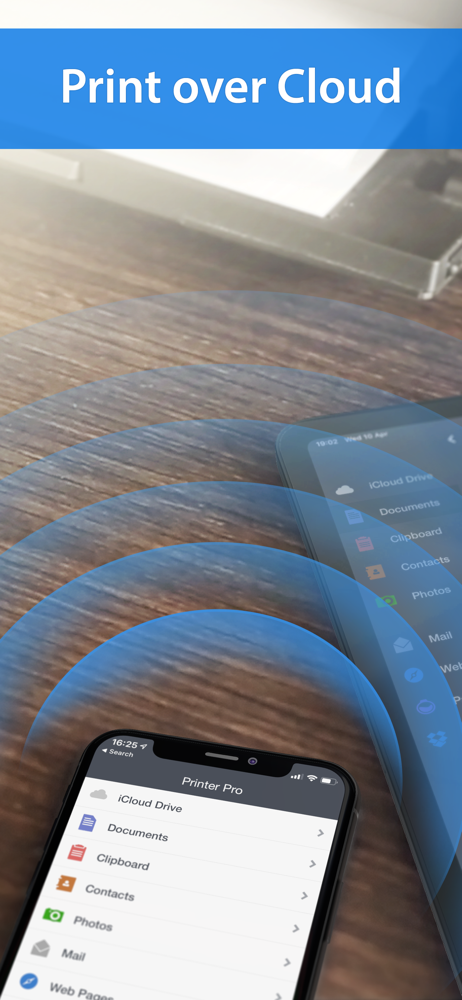
I’ve had Readdles®︎ Printer Pro iOS application for quite a while now, since before even updating to iOS 12, and when compared to the stock print process within iOS by Apple, Printer Pro is always the strong winner! That’s not to say it’s not without it’s own flaws but as opposed to the stock print option, you have much more control and choices at your fingertips. Opening Printer Pro’s iOS springboard/homescreen app brings up a menu of options including several locations, both locally on your iPhone/iPad to print from, but also any cloud accounts, external devices (you may have plugged in) and even FTP/etc! Settings allows even more choices, including security like TouchID/FaceID/Passcode to prevent unwanted users from printing from Printer Pro. I use an HP DeskJet 2600 series inkjet printer and while the included app for it (HP PrintSmart App) works exceptionally well with it, including advantages like turning my phone into a makeshift fax machine as well and so on, never-the-less Printer Pro stays on the top right next to HP’s app, and like almost every piece of software Readdle develops (like Documents!!!) it’s rock solid, well made and well supported.
My setup is: iPad mini2 iOS 12 printing to Canon MX870 connected to router via Ethernet cable. My iPad communicates with it by sending to Printer Pro Desktop for PC (PC is running Windows 7). Works great! I used the Lite version to test it first. I found out through a little trial and error that I needed to delete the Lite version before downloading and installing the Full version because they were conflicting with each other on my device. So, my suggestion, once you make sure Lite works, delete it. Then download the Full version. One feature I love about this app is the ability to make Print to PDF one of your printer options. Another helpful hint: If you send something to print and the printer doesn’t respond, try clicking on the tray icon for Printer Pro Desktop so that the program appears. It seems that, at times, doing this will refresh the connection. Also, if you need customer support, although you might have to wait a few days for a response, they're very professional and helpful. This app does what it's designed to do. It has an easy to navigate layout. It also provides simple instructions on the splash screen for each type of task. I would recommend it.
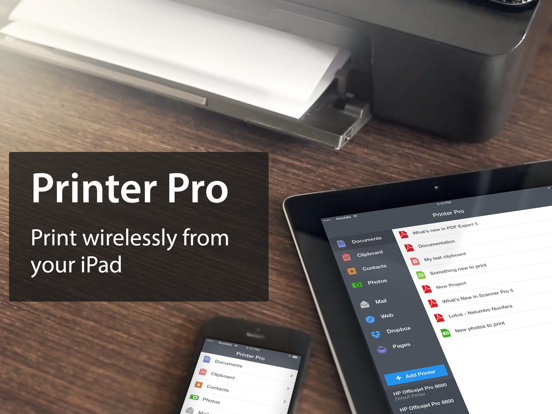
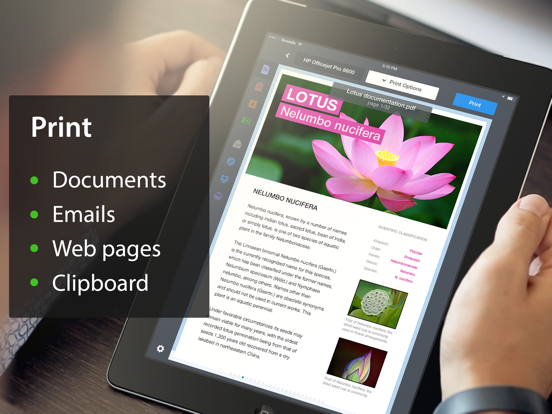
Print attachments, documents, web pages and more right from your iPhone and iPad to any Wi-Fi or USB printer. TRY BEFORE YOU BUY - just download free...