Check the acquisition promise
Read the store headline, screenshots and description. What problem is the app promising to solve?
Study the storefront ↗
Seiko Epson Corporation · iOS
Explore the ad evidence, study the storefront, and build your next acquisition hypothesis.
01 / Creative research
Read the store headline, screenshots and description. What problem is the app promising to solve?
Study the storefront ↗Explore apps with direct store-link matches. Compare their hooks and formats without assuming the same approach works here.
Browse observed advertisers ↗Store rankings and revenue estimates describe market context. They do not establish ad spend, conversions or ROAS.
Review the market context ↗02 / Storefront & product
Study the product story and store experience behind the acquisition funnel.




03 / Market context
Keep revenue, downloads and store rankings separate from advertising performance.
I received my scanner thinking it will connect automatically. Not realizing I had to do several things to have it connected without the router from home or the Wi-Fi. It was very frustrating. The lack of instructions how to troubleshoot connectivity would make a person return the scanner and call it a day. Thank goodness for persistence. After reading some of the reviews that people are having the same issues with similar scanners and their troubleshooting attempts have helped me tremendously. Thank you!!! These should be added to the manual. I know this is not the Epson website but reading your reviews helped me to connect my scanner. Thank you again!!! Now to leave a review on Epson site..lol have a great day 😊
Tried to use the App with my iPad and IPhone on two different ES300W scanners. I had the same issues everyone else is reporting. Was able to find the scanner and set up but unable to scan. The app would say that it was searching for scanner. Contacted Tech Support and they were unable to help offering a replacement. The Lady said that the only reason this issue happens is because of a VPN. Mine were turned off. Continued to troubleshoot on my own and found out finally that if you have a connected IPhone the cellular data disrupts the connection. Turned off Cellular data, and power cycled both devices and was able to connect both IPad and the IPhone. Once connected found that I could turn cellular data back on and go into settings - DocumentScan app and turn off Cellular data connection there. Issue resolved. Hope this helps. Now I completely love my ES-300W
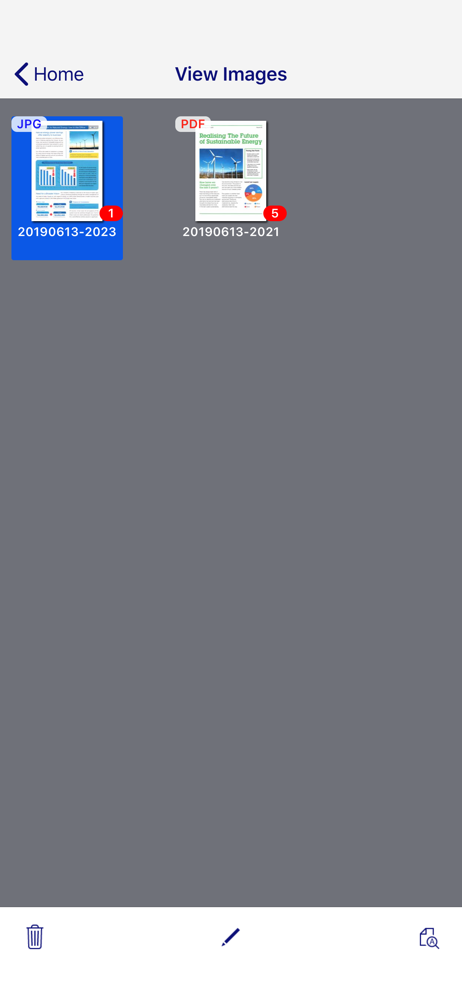
I have hundreds of JPEG images “stuck” in the files section of this app - after a long scanning session of old photos - because the developers have not provided for a feature to save-out multiple JPEG images simultaneously in one-go - neither to the Camera Roll nor to any other option (Mail, Files, Google Drive, etc). That makes scanning for example 100 photos as JPEGs a futile exercise- in under a minute for the scanning, and over an hour to save the files out of the app?!?! Does that make sense? No it doesn’t. It’s anti-user, and it defeats usefulness of the Epson scanning hardware. So, Epson developers - UPDATE THIS APP with this essential oversight Kindly, nobody chime in with “just use the pdf scanning option instead” because it’s not a workaround if one needs to process the images downstream - to have to extract images from pdf files.
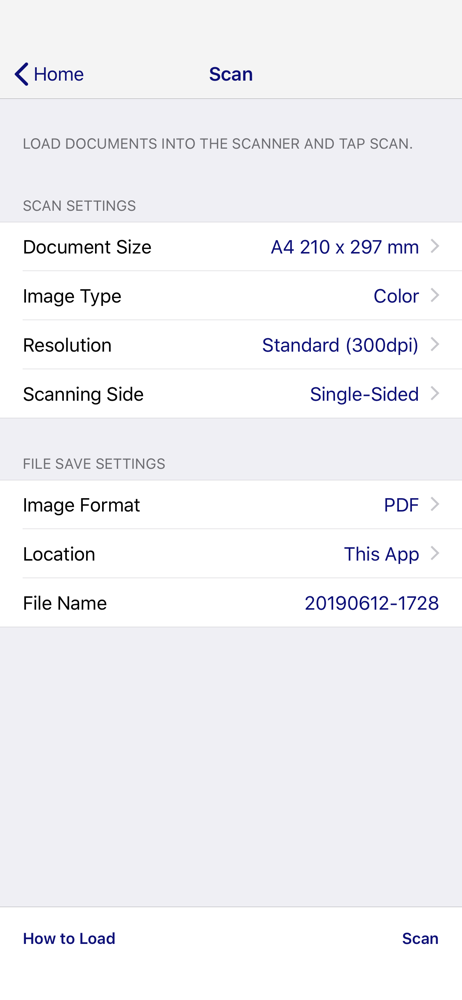
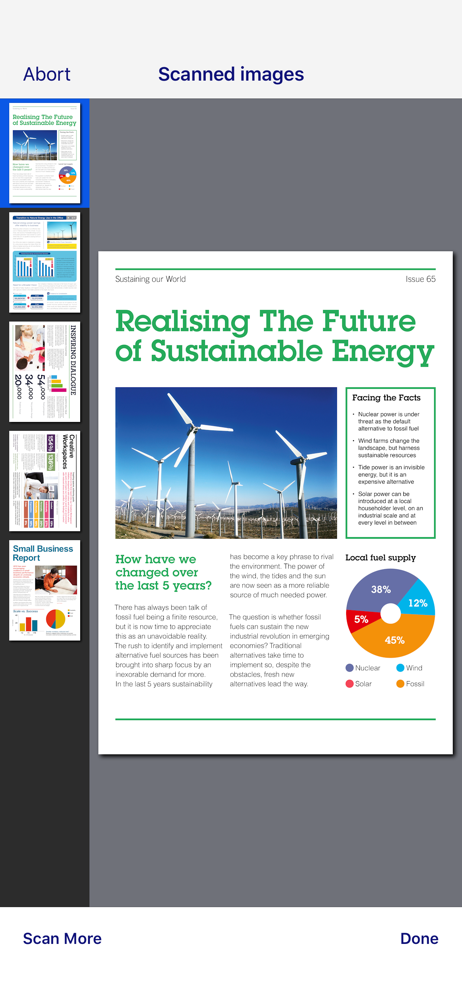
This app is only for Epson scanners. Make sure that your scanner is supported. Scan documents directly to your iPhone®, iPod touch or iPad®. You can p...